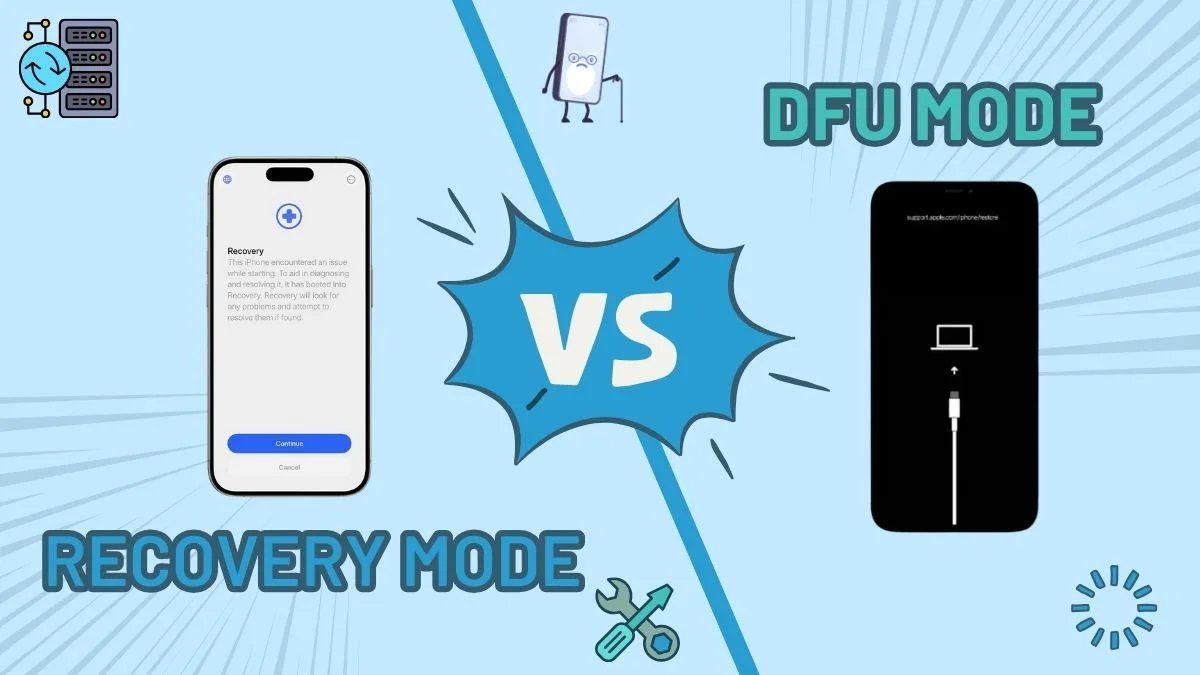
If you have ever tried fixing an unresponsive iPhone, you may have come across DFU mode and Recovery mode. While both are troubleshooting tools designed by Apple, they have different purposes and are used in different scenarios. Understanding the difference between the two helps you in choosing the right solution without risking any sort of data loss.
In this guide, we will explain to you how difference between DFU mode and recovery mode and how each of them works.
What Is Recovery Mode?
Recovery mode is a built-in feature developed by Apple which helps users repair iOS devices which are not functioning correctly. It allows an iPad and iPhone to communicate with iTunes or Finder when iOS becomes corrupted and fails to update or does not boot normally. Just by loading a minimal version of iOS, recovery mode allows essential system repairs without needing full access to the operating system.
In Recovery Mode, users can:
- Update iOS without immediately erasing data
- Restore the device to factory settings if required
- Resolve common software-related issues such as crashes and boot failures
Key Features of Recovery Mode
Recovery mode is designed to be user-friendly and safe, which makes it appropriate for most of the IOS troubleshooting problems. When the mode is activated, the device loads the iOS bootloader and becomes visible to iTunes or Finder, which clearly shows that the recovery option is available.
Key features include :
- Partial loading of iOS through the bootloader
- Easy detection by iTunes or Finder
- Visual indicators like the Apple logo or cable-to-computer screen
- Lower risk compared to DFU Mode
When to Use Recovery Mode
Recovery mode should be your first option when any of your iOS devices faces a software-related issue which is hindering your normal usage. It is especially useful for resolving issues which are caused by failed updates or temporary system glitches.
You should use Recovery Mode if:
- When your device is stuck on the Apple logo
- The device keeps restarting repeatedly
- An iOS update fails or freezes midway
- The screen becomes unresponsive, or the device won’t boot normally
For most users, Recovery Mode will provide them with a reliable and safe solution
How to Start Recovery Mode
Initiating a recovery mode varies for different iPhone models, but the process is quite simple. You will need a computer with iTunes (Windows or older macOS) or Finder (macOS Catalina and later). Make sure that you have connected the device before beginning the process.
Steps to enter Recovery Mode:
- Connect your iPhone to a computer using a Lightning cable or USB-C cable
- Open iTunes or Finder on your computer
- Turn off the iPhone completely
- Press and hold the required button combination until the recovery screen appears
Button combinations by model:
- iPhone 8 and later: Press and quickly release the Volume Up, then Volume Down, then hold the Side button until the recovery screen shows
- iPhone 7 / 7 Plus: Hold the Volume Down and Power buttons together until the recovery screen shows
- iPhone 6s and earlier: Hold the Home and Power buttons together until the recovery screen shows
What Is DFU Mode?
DFU (Device Firmware Update) Mode is an advanced restore state which goes deeper than the recovery mode. It bypasses both the IOS operating system and the bootloader, which allows the device to communicate directly with iTunes or Finder at the firmware level. This makes DFU mode perfect for fixing severe system corruption.
In DFU Mode:
- The screen remains completely black
- No version of iOS is loaded
- Firmware and software can be fully reinstalled
Key Features of DFU Mode
DFU mode is the most powerful restore option out there for Apple devices. Because it bypasses the iOS entirely, which gives deeper access to the system but needs more accuracy and understanding for safe usage.
Key features include:
- No iOS or bootloader involvement
- Complete firmware-level restoration
- Black screen indicating successful entry
- Designed for advanced troubleshooting scenarios
When to Use DFU Mode
DFU mode should only be used when the standard recovery options fail. It is generally required in situations which involve serious firmware damage or system-level errors which cannot be fixed through the recovery mode.
DFU Mode is appropriate when:
- Recovery Mode is not able to fix the issue
- iOS is severely corrupted
- The device is stuck after a jailbreak or beta update
- Firmware installation fails over and over again
- An iOS downgrade is required (where permitted)
How to Start DFU Mode
Entering the DFU mode requires more accuracy than the recovery mode, as timing plays an important role. The device screen should be completely black for DFU mode to be successful. If you screen the Apple logo or the recovery screen, the process needs to be repeated.
Before starting the process, your iPhone should be connected to iTunes or Finder.
Steps to enter DFU Mode (iPhone 8 and later):
- Press and quickly release Volume Up
- Press and quickly release Volume Down
- Press and hold the Side button until the screen turns black
- While holding the Side button, press and hold Volume Down for 5 seconds
- Release the Side button, but continue holding the Volume Down for another 10 seconds
If the above steps are done correctly, the screen will stay black, and iTunes or Finder will detect the device in DFU Mode. In cases where even DFU Mode does not restore functionality, opting for a device buyback or recycling service such as CashMyCell can be a practical alternative to repeated repair attempts.
Steps for older models:
- iPhone 7 / 7 Plus: Hold Power and Volume Down for 10 seconds, then release Power while continuing to hold Volume Down
- iPhone 6s and earlier: Hold Power and Home for 10 seconds, then release Power while holding the Home button
How to Exit Recovery Mode or DFU Mode
Exiting both modes is quite simple and does not require you to restore the device until prompted.
- Force restart the iPhone using the standard restart method for your specific model.
- The device will reboot normally if there is no restore in progress.
DFU Mode vs Recovery Mode: Key Differences
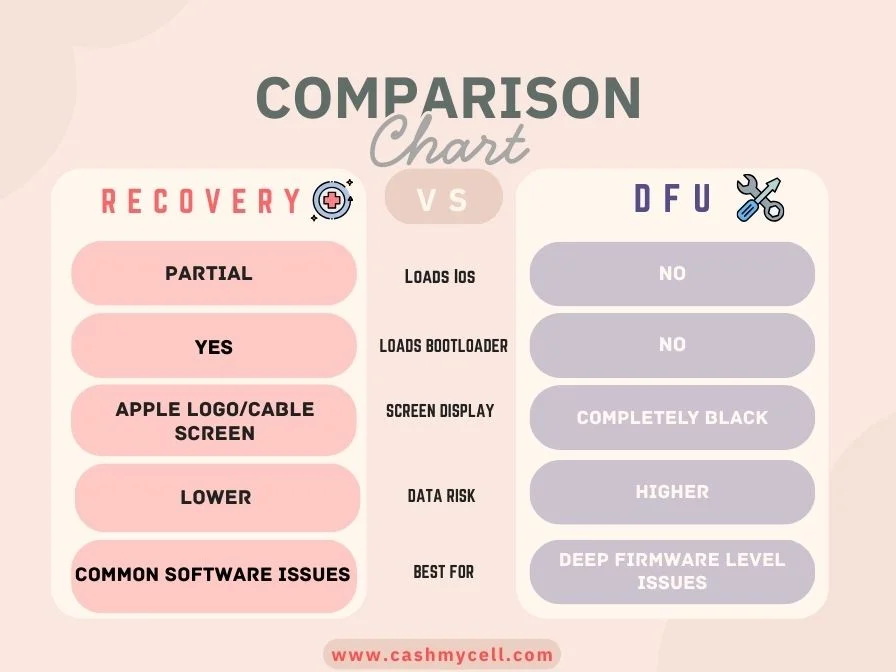
| Feature | Recovery Mode | DFU Mode |
| Loads iOS | Partial | No |
| Loads Bootloader | Yes | No |
| Screen Display | Apple logo /Cable Screen | Completely black |
| Data Risk | Lower | Higher |
| Best For | Common Software Issues | Deep firmware-level Issues |
FAQs
1. Can Recovery Mode fail even if there is no serious damage?
Yes. Any type of temporary glitches, interrupted updates, or unstable connections can cause Recovery Mode to fail even when the system is not severely corrupted.
2. Does DFU Mode require an internet connection?
Yes, DFU modes require you to have an internet connection to download the correct firmware during the restore process.
3. Can DFU Mode be used on a locked or disabled iPhone?
Yes, you can enter DFU mode on a locked or disabled phone as long as the phone's hardware buttons are functional.
4. What should I do if my iPhone exits DFU Mode automatically?
This generally indicates incorrect timing during the button presses. Repeating the steps carefully usually fixes this issue.
Conclusion
Both Recovery Mode and DFU mode are important Apple troubleshooting tools, but they are intended for different levels of system issues. Knowing when and how to use each mode helps you avoid any unnecessary data loss and saves your time during the recovery process. Choosing the right method depending on the severity of the situation guarantees a smoother and safer repair process. If none of these methods work and repair costs feel too high, you can also choose to sell the damaged phone instead of letting the device go to waste.