Screen burn-in in smartphones is the ghost outline of icons, status bars, or keyboards that stays visible after the content of the screen changes. While the displays of modern phones are more advanced, burn-in can still happen, particularly on OLED and AMOLED screens, which are used in most of the premium smartphones' screens today.
What Is Screen Burn-In on a Phone?
Screen burn-in usually occurs when certain areas of the phone display are used more frequently than others. Over time, these pixels age faster, which leaves behind faint but noticeable marks on the static elements such as battery icons, navigation buttons or app headers.
Unlike scratches or cracks, burn-in is a display-level issue and is generally permanent in nature.
Screen Burn-In vs Image Retention on Phones
Not every ghost image means that your phone is damaged.
Image retention is temporary in nature. The shadow usually fades away after some minutes or hours once the content of the screen changes. The screen burn is permanent and remains visible even after a long time.
If the image slows or disappears, your phone probably has image retention, not true burn-in.
Why Smartphones Get Screen Burn-In
Phone burn is generally caused by uneven pixel usage, particularly on OLED displays.
Common reasons include:
- Status bar icons that never move
- Navigation buttons or gesture hints
- On-screen keyboards used for long periods
- High brightness levels all day
- Using the same app for hours without breaks
As OLED displays emit their own light, they wear out over a period of time, which increases the burn-in risk.
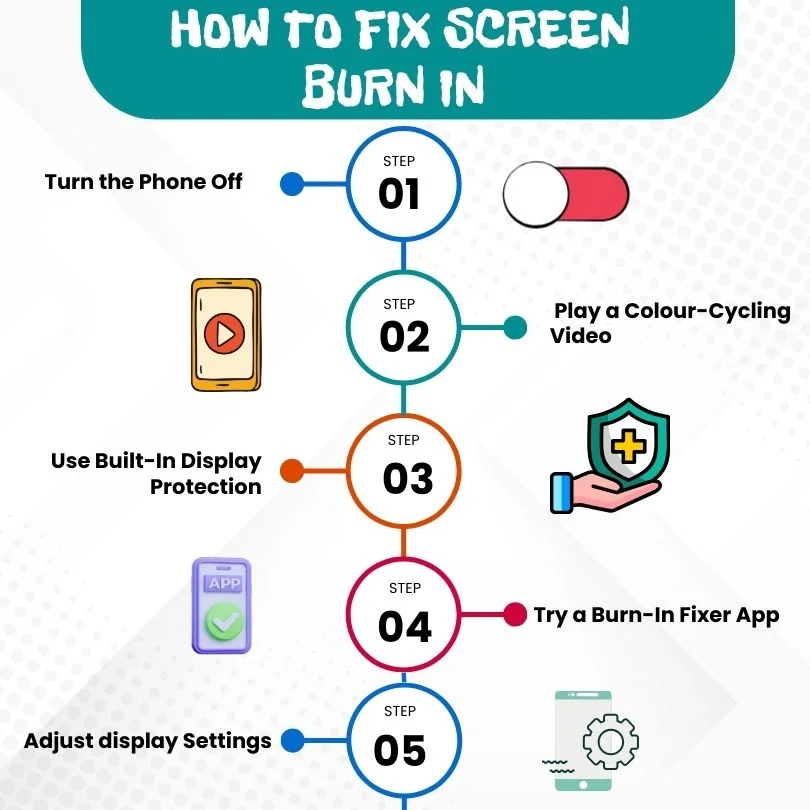
How to Fix Screen Burn-In on Phones
Permanent burn-in screens are usually difficult to repair, but the image retention can be improved by following some simple steps.
Step 1: Turn the Phone Off
Sometimes, the simplest of fixes works. Powering off the phone for a few hours allows the pixels to reset and may clear the image retention.
This is usually when the issues appear suddenly.
Step 2: Play a Colour-Cycling Video
Running a fast-changing, full colour video can help in balancing out the pixel usage. Play the video for 15 to 30 minutes with medium brightness.
This method is usually best with image retention, not with full burn-in.
Step 3: Use Built-In Display Protection
Most of the modern smartphones come with a display protection feature :
- Pixel shifting
- Adaptive brightness
- Screen optimisation tools
Make sure that these features are enabled to prevent any further damage.
Step 4: Try a Burn-In Fixer App
Some apps are designed to reduce image retention by rapidly changing the colour of the screen. These apps will not be able to repair the permanent burn-in, but they may help in reducing its visibility.
Step 5: Adjust Display Settings
Reducing the daily staring at the screen will help in preventing the worsening :
- Lower screen brightness
- Enable dark mode
- Shorten screen timeout
- Avoid static wallpapers
These steps will help protect the OLED pixels from uneven wear.
When Screen Replacement Is the Only Option
When the ghost screen remains visible after days of trying the above steps, the damage is likely to be permanent. In this case, you should
- Check if your phone is under the warranty period
- Contact the manufacturer or service centre
- Consider a screen replacement
If screen replacement feels too costly or impractical, many users choose to sell their Broken Phone devices affected by burn-in and upgrade to a phone with a healthier display.
How to Prevent Screen Burn-In on Phones
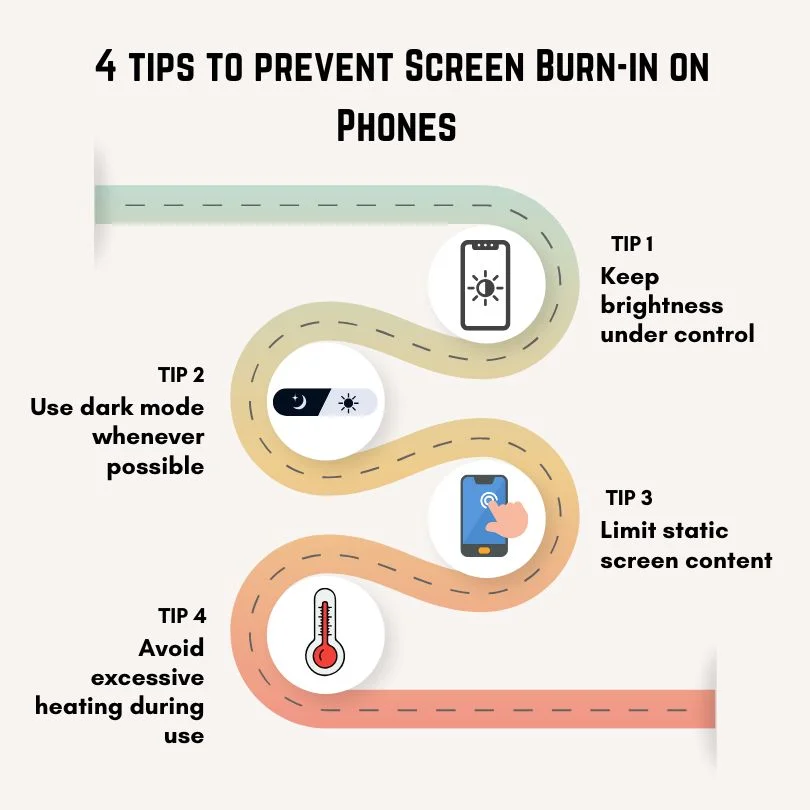
Preventing the burn-in is easier than fixing it. Here are some of the simple ways which can help you in preventing screen burn on your phone :
- Keep brightness under control - Avoid using your phone at maximum brightness for a long period of time
- Use dark mode whenever possible -Dark interfaces reduce the pixel stress and slow down the uneven pixel ageing
- Limit static screen content -Try not to leave fixed elements such as navigation bars, keyboards, or paused screens on for long periods of time
- Avoid excessive heating during use: Overheating can increase the display wear, especially during the charging time or gaming
FAQs
1. Do LCD phones get screen burn-in?
In rare cases, LCD screens are more prone to image retention.
2. Are burn-in fixer apps safe?
They are usually safe at moderate brightness, but it would not fix the issue permanently.
3. Does dark mode help prevent burn-in?
Yes. Dark mode reduces the amount of pixel usage on the OLED displays.
4. Do screen savers really help prevent burn-in?
Yes, screen savers reduce the static image exposure and help in uniform pixel usage.e
5. Can a factory reset fix screen burn-in?
No. Burn is generally hardware-related, and doing a reset will not fix the screen damage.
.
Conclusion
Screen burn is quite uncommon in today's advanced and modern screens, but it can still happen with long hours of use, uneven screen usage. While permanent burn-in cannot be fully repaired, taking early action can reduce the image retention and prevent the issue from worsening. Making use of built-in display protection features, adjusting the brightness habits and avoiding the static on-screen elements play an important role in maintaining good display health. With mindful usage and preventive settings, you can on a great extent can extend the lifespan and visual quality of your smartphone. And if screen burn-in eventually limits usability despite careful settings and mindful habits, CashMyCell provides you with a simple way to make sure your phone still holds value, making the transition to a newer device easier.