If your iPhone feels slow, websites are loading not properly, or you keep seeing out-of-date content, the issue could be stored in the internet cache. Clearing up the internet cache on your iPhone is quite simple yet a beneficial way to improve the browsing speed, fix the loading errors and clear up some storage space. In this guide, we will talk about what the internet cache is, why you should clear it and how to clear the internet cache on your iPhone safely without losing any important data.
What is Internet Cache on iPhone?
The Internet cache is the temporary data stored by your browser when you visit a website. This data usually consists of images, scripts, cookies, and other files which help websites in loading faster the next time you visit them. Initially, cache improves the performance of your device, but over time, it can pile up and cause problems such as slow browsing, glitches, or incorrect page loading.
On an iPhone, cache is usually stored by browsers such as Safari, Chrome, and Firefox, as well as by some of the apps which make use of internet data in the background.
Why You Should Clear Internet Cache on iPhone
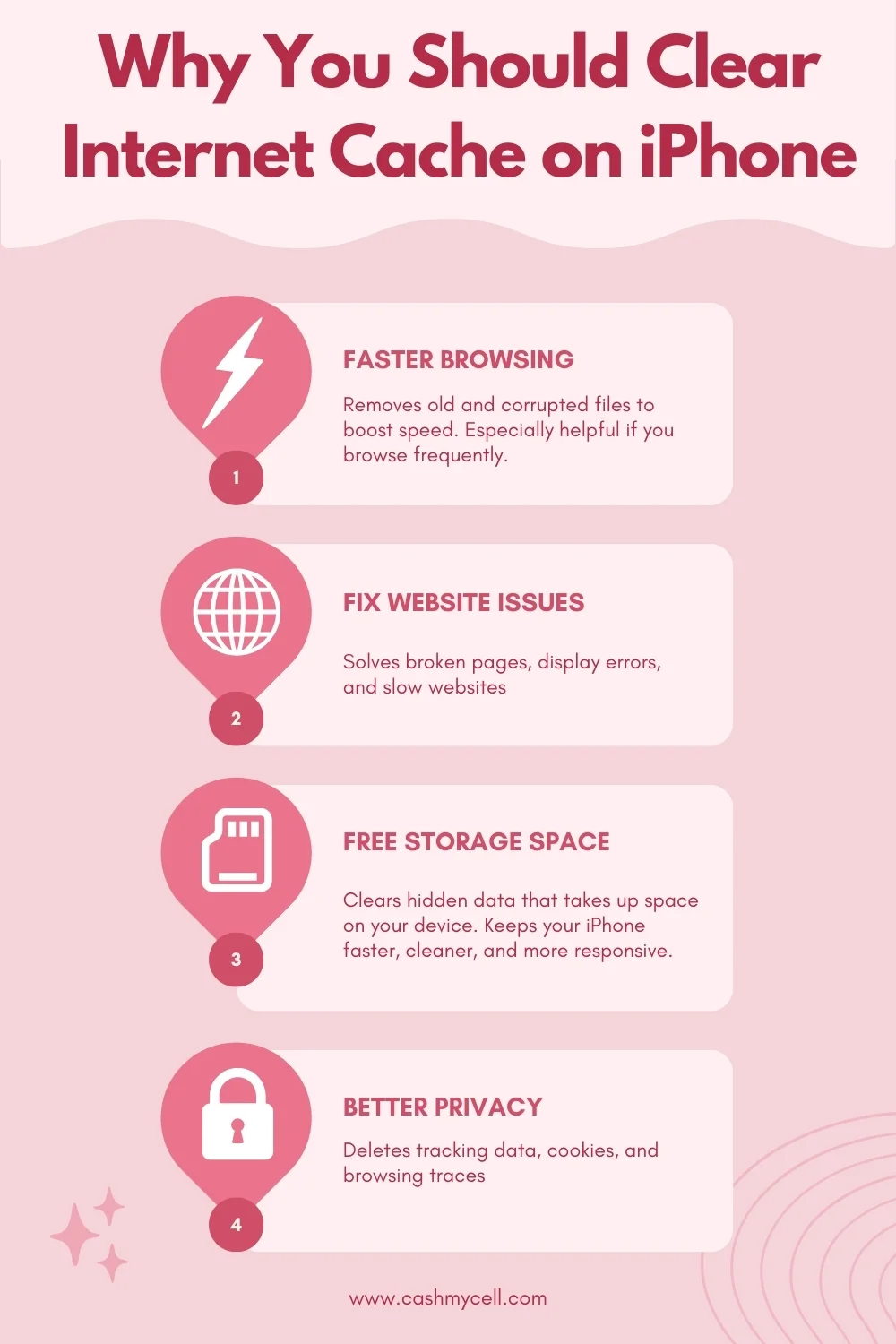
Clearing the internet cache on your iPhone provides you with several benefits :
- Improves browser speed by removing old or corrupted files
- Fixes website loading issues and displays errors
- Frees up storage space on your device
- Protects privacy by removing tracking data and cookies
- Resolves app crashes related to cached web content
If you browse frequently and have not cleared your cache in a long time, doing so can significantly improve the performance.
How to Clear Internet Cache on iPhone (Safari)
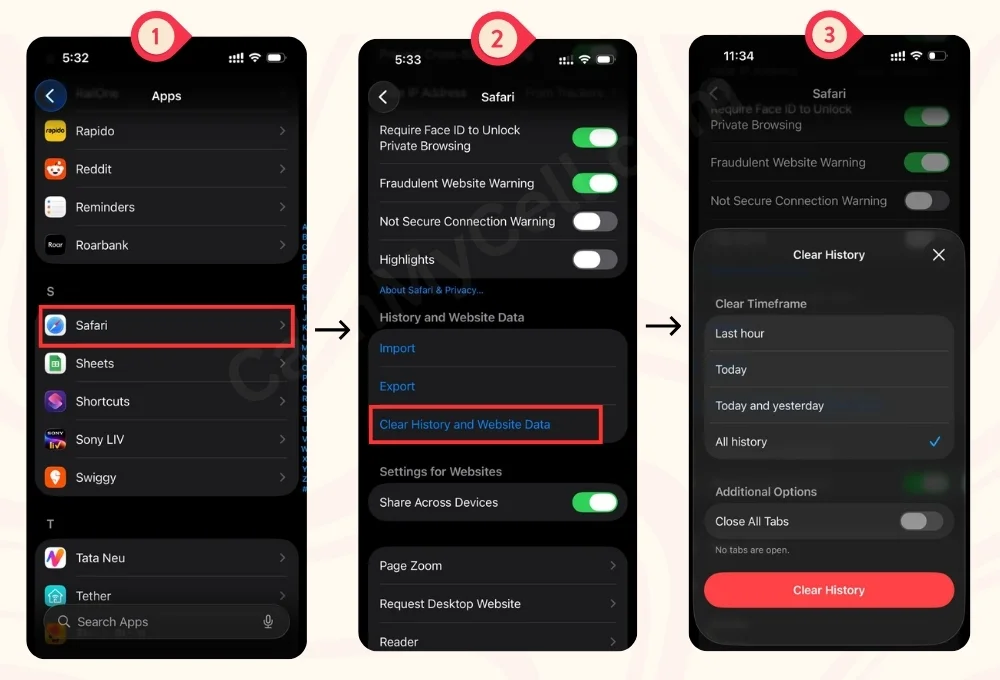
Safari is usually the default browser on the iPhone, and clearing its cache is easy and quick.
Steps to Clear Safari Cache:
- Open Settings on your iPhone
- Scroll down and tap Safari
- Tap Clear History and Website Data
- Confirm by selecting Clear History and Data
This action removes the browsing history, cookies and cached files.
Note: You will be logged out of websites after clearing the cache.
How to Clear Internet Cache on iPhone Without Deleting Histor
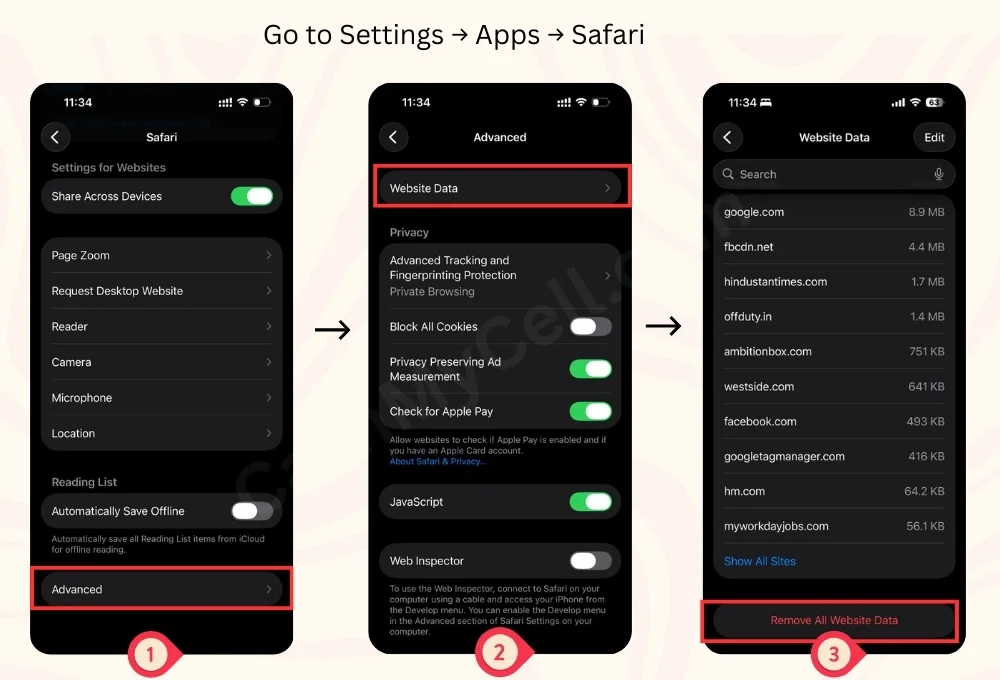
If you want to clear the cached data while keeping up the browsing history :
- Go to Settings → Safari
- Tap Advanced
- Select Website Data
- Tap Remove All Website Data
This removes cache and cookies without affecting the browsing history of Safari.
Might found helpful: How to Fix Screen Burn on Any Phone
How to Clear Cache on iPhone Browsers Like Chrome and Firefox
Third-party browsers usually save the cache separately, so you have to clear them individually
Clear Cache in Chrome:
- Open Chrome
- Click on the three dots menu
- Go to Settings → Privacy and Security
- Click on the Clear Browsing Data
- Select Cached Images and Files and confirm
Clear Cache in Firefox:
- Open Firefox
- Click on the menu icon
- Go to Settings → Data Management
- Toggle Cache and tap Clear Private Data
How to Clear App Cache on iPhone
Unlike in Android, you can't clear the cache of all apps directly in iOS. However, you can still manage the app cache using these methods :
Offload Unused Apps
- Go to Settings → General → iPhone Storage
- Tap on an app
- Select Offload App
This helps in removing the cache data while keeping the app documents undamaged.
Reinstall the App
Deleting and reinstalling an app clears its cache and refreshes its data.
How Often Should You Clear the iPhone's Internet Cache?
There is no fixed rule, but you should clear the cache every one to two months, which is ideal for most of the users. You can do it on a more frequent basis if :
- Websites load incorrectly
- Your browser crashes
- Storage space is running low
- You use your iPhone heavily for browsing
Regular cache cleaning helps in maintaining smooth performance without affecting your daily usage.
Does Clearing the Cache Delete Important Data?
Clearing the Internet cache does not delete photos, messages, contacts, or personal files. However:
- You may be logged out of websites
- Some website preferences may be reset
- Pages may load slightly slower the first time after clearing the cache
These are usually temporary effects and improve the overall performance afterwards.
Common Problems Solved by Clearing iPhone Cache
Clearing the internet cache can fix issues such as:
- Safari is not opening pages
- Websites showing old content
- Frequent freezing of the browser
- Apps are crashing frequently due to web data errors
- iPhone storage is filling up unexpectedly
It is one of the easiest troubleshooting steps you can try before moving towards more advanced solutions.
Frequently Asked Questions
1. Will clearing the internet cache improve iPhone battery life?
Indirectly, yes. Clearing the cache can reduce the background processing caused by corrupted or excessive web data, which may help improve battery usage during sessions.
2. Does clearing the cache affect saved passwords on iPhone?
Clearing the cache alone affects the saved passwords in the iCloud keychain. However, if the cookies are removed, you may need to log in again on some of the websites.
3. Can cache buildup slow down mobile data speed?
Cache itself doesn't slow down the data speed, but any corrupted cache can cause repeated reloads and failed requests, which can, in turn, result in browsing feeling slower.
4. Can cached data cause websites to display incorrectly?
Absolutely. Outdated cache files can prevent websites from loading updated designs or content, which can lead to broken layouts or missing elements.
Conclusion
Clearing the internet cache on an iPhone is not just a quick fix for slow browsing; it also plays an important role in keeping your device aligned with the modern web standards. Many of the websites update their security protocols, layouts and scripts on a regular basis,s and outdated cache files can hinder these updates from loading in correctly. Clearing caches makes sure your iPhone interacts with the websites as expected, especially when accessing banking portals, government sites or web-based tools.
Additionally, cache clearing can help you in switching networks, such as going from wifi to mobile data, where stored web data conflicts with the new network settings. It is also useful before troubleshooting browser extensions, content blockers or vpn related browsing issues. Making cache management a habit allows your iPhone to stay compatible, responsive, and ready for a smooth web experience across various changing digital environments
Before wrapping up, if you have a damaged or broken iPhone and you want to sell for the best price, you can try CashMyCell. It compares and shows you the best available selling price for your phone in the market.