Sometimes, we feel the necessity of a split screen in iphone, and this is a common feature on Android that has been there for decades now. Apple has also given this feature on the iPad, but the question is, when will it come to the iPhone, or is it already there, and I just don’t know?
To check, you opened Google…searched “split screen feature on iPhone.” You click on this article and get excited…but wait, wait, wait. There are some catches that I will cover in this article thoroughly.
Note: Before we start the article, let me make you aware that there is no official split-screen feature from Apple for iPhones, but we geekies have found a workaround.
How to Switch Between Apps Quickly on iPhon
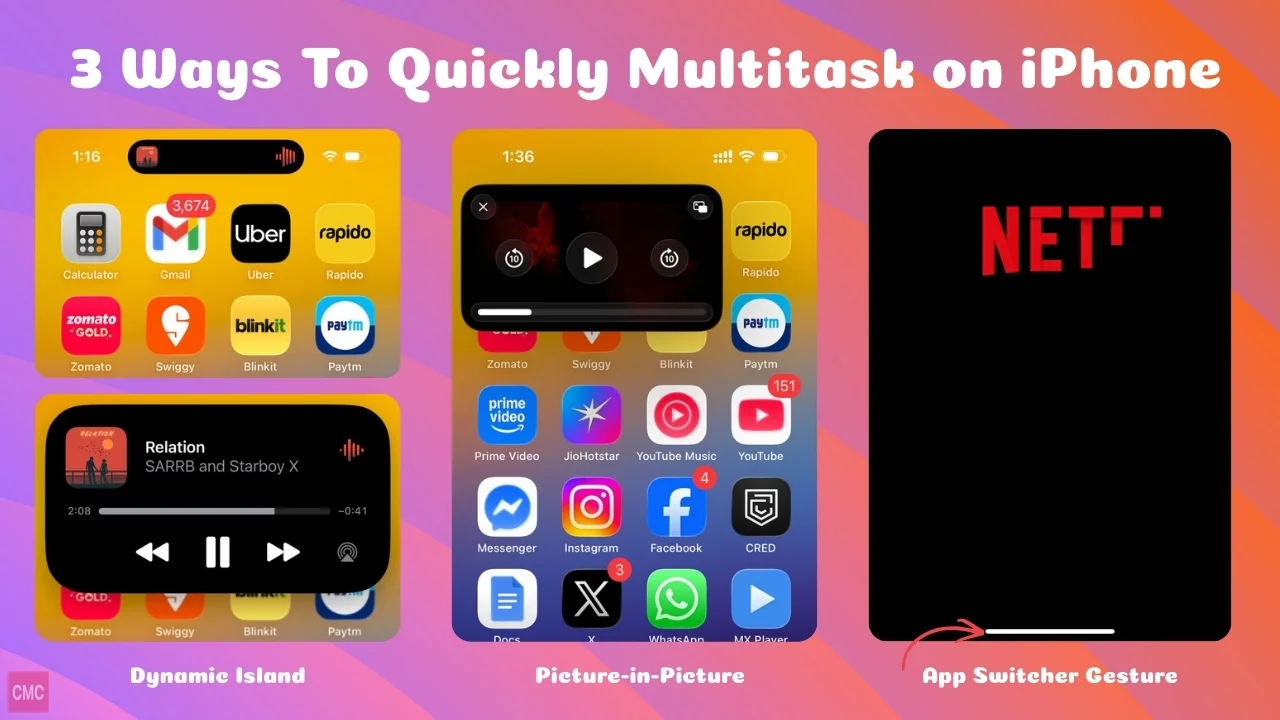
First, let’s start with the built-in features that Apple has given to make you feel like you’re multitasking.
1. Picture-in-Picture Mode
Picture-in-Picture allows you to keep a video playing in a small floating window while using another app.
How to enable Picture-in-Picture on iPhone:
- Open Settings
- Go to General
- Tap Picture in Picture
- Turn on Start PiP Automatically
Once enabled, supported apps like YouTube Premium, Safari videos, and FaceTime will automatically shrink into a floating window when you swipe up or switch apps.
You can:
- Drag the video around the screen
- Resize it
- Swipe it off the screen temporarily
This is the closest Apple gets to true multitasking on iPhone.
2. Using App Switcher Gesture
It’s really my favourite way to multitask quickly. I swear, Android phones do not have as smooth an experience as iPhones. All you need to do is swipe right or left at the bottom of the screen, and you will be able to switch apps quickly.
3. Dynamic Island
If you’re using an iPhone with Dynamic Island, multitasking becomes smoother and more interactive. It’s an Add-on feature now.
Dynamic Island lets background activities run live at the top of your screen, such as:
- Music playback
- Timers
- Navigation
- Phone calls
- Uber and many more
You can tap or long-press the Dynamic Island to expand controls without fully switching apps. It’s not split screen, but it does reduce constant app hopping.
If you use Assistive Touch, PIP, Dynamic Island, and the app switch gesture, I don’t think you will feel the need for the split screen feature anymore. These 3–4 things are enough for me to multitask.
How to Open Two Apps on iPhone at the Same Time (Slip Screen - Dual Window)
Split Screen Using Third-Party Apps (Dual Window Method)
Since iPhones don’t support split screen officially, third-party apps step in.
One popular option is Split Screen – Dual Window.
This app allows you to:
- Open two websites on the same screen
- Stack them vertically
- Adjust the height of each window
Important limitations to know:
- You cannot run two native iOS apps
- Only website versions of apps work
- Performance depends on the site, not the app
How to use it:
- Open the App Store
- Search for Split Screen
- Download Split Screen – Dual Window
- Open the app and load two websites
It’s useful for browsing, research, or watching a video while reading.
Floating Dock Plus Method (Jailbreak Required)
This method uses a jailbreak called FloatingDockPlus to bring iPad-style multitasking features to the iPhone. Keep in mind that jailbreaking has risks, so proceed only if you are comfortable with it.
Step 1: Jailbreak Your iPhone
First, make sure your iPhone is jailbroken using a compatible jailbreak tool for your iOS version. This method will not work on a non-jailbroken device.
Step 2: Open Your Package Manager
After jailbreaking, open your package manager such as Cydia, Sileo, or Zebra, depending on what your jailbreak supports.
Step 3: Search for FloatingDockPlus
In the search tab, type FloatingDockPlus. Select the tweak from the results.
Step 4: Install the Tweak
Tap Install, then Confirm. Once the installation is complete, allow your iPhone to respring.
Step 5: Enable FloatingDockPlus
Go to Settings on your iPhone. Scroll down and open FloatingDockPlus settings. Enable the tweak and configure options like recent apps, dock size, and gestures if available.
Step 6: Open the Floating Dock
Swipe up and hold from the bottom of the screen to bring up the floating dock, similar to the iPad.
Step 7: Use Two Apps at the Same Time
From the floating dock:
- Tap one app to open it normally
- Drag another app from the dock onto the screen
This allows you to run apps side by side or in a floating window, depending on the app and configuration.
Important Things to Know
- Not all apps support split view properly
- Some apps may crash or resize incorrectly
- Jailbreaking can affect security, stability, and warranty
This is one of the closest ways to experience true split-screen multitasking on an iPhone, but it is recommended only for advanced users.
Now you have jailbreak your iPhone and now facing some issue in it then what to do? You can easily sell it on Cashmycell for best pricing.
FAQs
Q1. Does iPhone support true split screen like Android?
Ans. No. Apple does not officially support split screen on iPhone.
Q2. Can multitasking drain the battery faster?
Ans. Yes, especially Picture-in-Picture videos and background activities.
Q3. Why do apps reload when I switch between them?
Ans. This happens due to RAM management. iOS pauses apps to save memory.
Q4. Can you open two apps on an iPhone at the same time?
Ans. Not really, but yes, you can watch a YouTube video while texting, scrolling reels, or watching any video in apps that support PIP.
My Final Verdict
If you’re expecting Android-level split screen on iPhone, you’ll be disappointed. Apple keeps multitasking tightly controlled. However, features like Picture-in-Picture, Dynamic Island, fast app switching, and third-party workarounds make multitasking more practical than it seems at first glance.
It’s not perfect.
It’s not true split screen.
But if you know the tricks, you can absolutely multitask efficiently on an iPhone.